analytics-widgets — read-side walkthrough
The analytics-widgets template is the canonical read-side Dockyard example (D-124). Three contract-first widget tools rendered inline by one Svelte App.
Scaffold
dockyard new my-widgets --template analytics-widgets
cd my-widgets
If you installed Dockyard via go install …@latest, that's all — the generated go.mod pins the published module and resolves with no extra flag. If you built Dockyard from source, add --dockyard-path /path/to/dockyard so the generated go.mod and web/package.json point at your local checkout (D-080).
The scaffold produces:
my-widgets/
├── README.md
├── dockyard.app.yaml          # manifest — three tools + one App
├── go.mod
├── main.go                    # registers app + tools; stdio | http serve
├── internal/
│   ├── contracts/             # CreateChart{Input,Output}, CreateTable…, MetricCard…
│   └── handlers/              # CreateChart, CreateTable, CreateMetricCard
├── fixtures/                  # six fixtures per tool — happy/empty/error/permission/slow/large
└── web/
    ├── package.json
    ├── vite.config.ts
    └── src/
        ├── App.svelte         # the dispatcher (by Kind discriminator)
        ├── theme.ts
        └── widgets/
            ├── Chart.svelte
            ├── ChartFrame.svelte
            ├── Table.svelte
            └── MetricCardWidget.svelte
The three tools
| Tool | Renders |
|---|---|
create_chart | Apache-ECharts chart inline (bar/line/area/pie/scatter/radar) |
create_table | sortable, paged data table |
create_metric_card | KPI card with optional sparkline + breakdown |
Each tool is contract-first: the typed input/output structs in internal/contracts/contracts.go are the source of truth; the JSON Schema the host sees is generated.
The output of each tool carries a Kind discriminator ("chart", "table", "metric_card") so the App's single dispatcher routes structuredContent to the right renderer with no shape-sniffing.
Run + inspect
dockyard new already ran go mod tidy and dockyard generate, so the project's Go dependencies and contract artifacts (JSON Schema + TS) are ready. (If you scaffolded with --no-postgen, run those two first.)
A template ships a Svelte UI, so two one-time steps come before the dev loop — skip them and dockyard dev fails with vite: command not found (web deps not installed) and open web/dist/index.html: file does not exist (the embedded bundle hasn't been built yet):
# 1. Install the web deps once (provides the Vite bundler):
(cd web && npm install)

# 2. Build once so the embedded UI bundle (web/dist) exists:
dockyard build
Now you can run the dev loop, which auto-attaches the inspector and prints its URL:
dockyard dev
# ...
# INFO inspector ready at http://127.0.0.1:54321   ← cmd-click to open
dockyard dev supervises the Go server, regenerates contracts on a change, and runs Vite (Svelte HMR) for the App. Ctrl-C tears the whole tree down.
Prefer a standalone inspector against a built server? Run it on HTTP in one terminal and attach in another:
DOCKYARD_TRANSPORT=http dockyard run                   # terminal 1
dockyard inspect --url http://127.0.0.1:8080 --dir .   # terminal 2
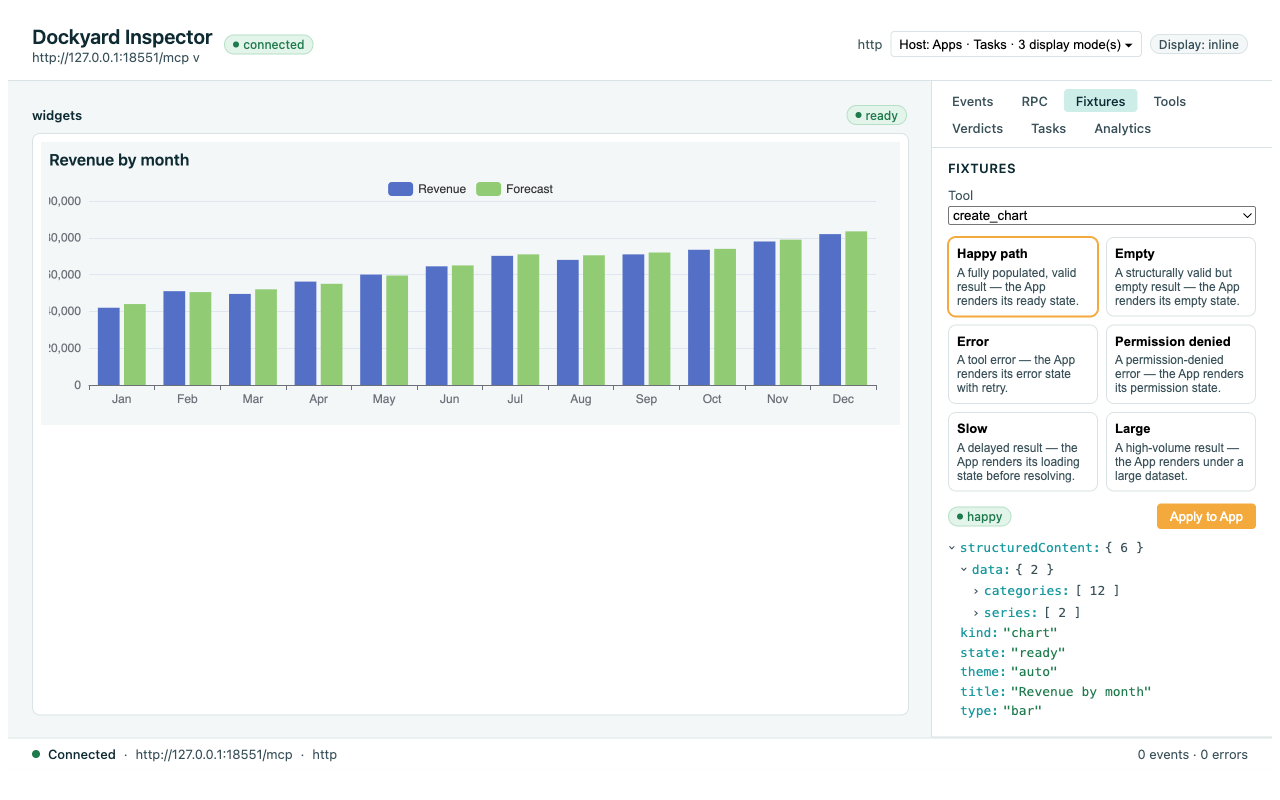
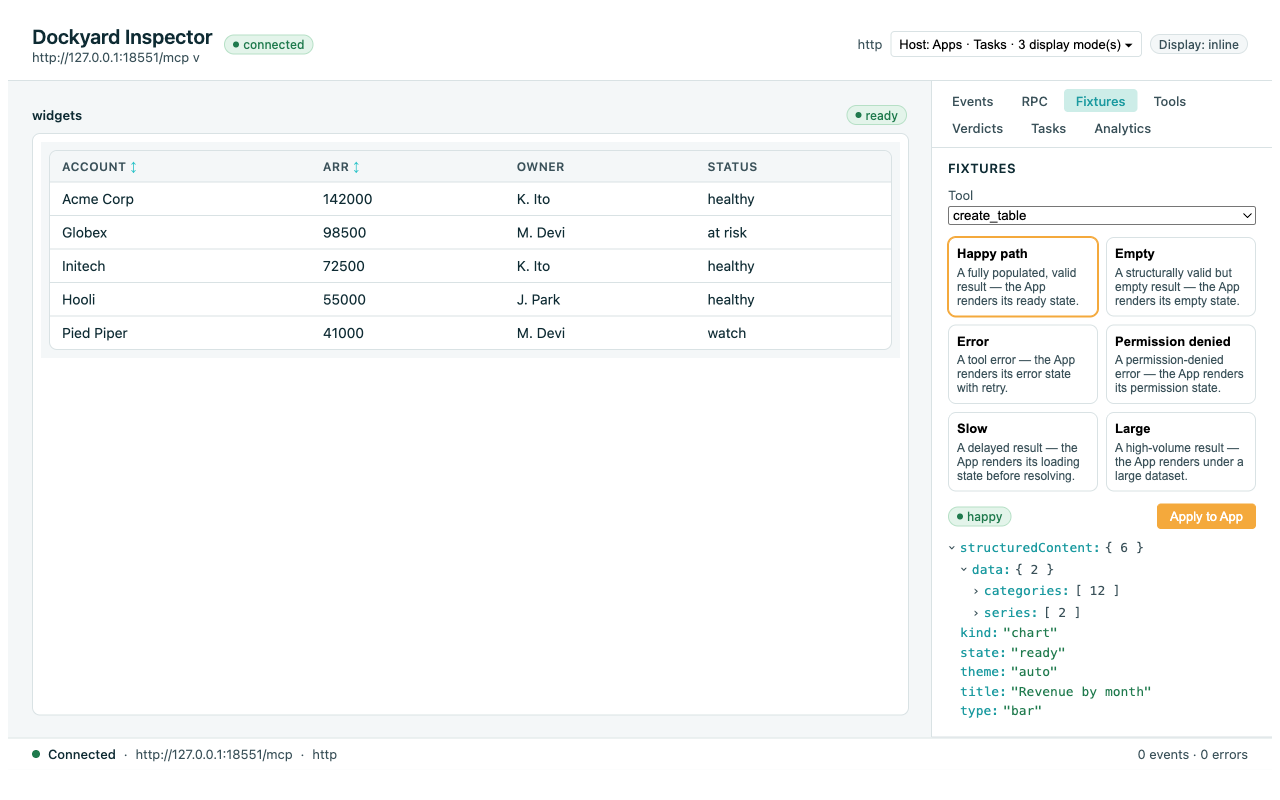
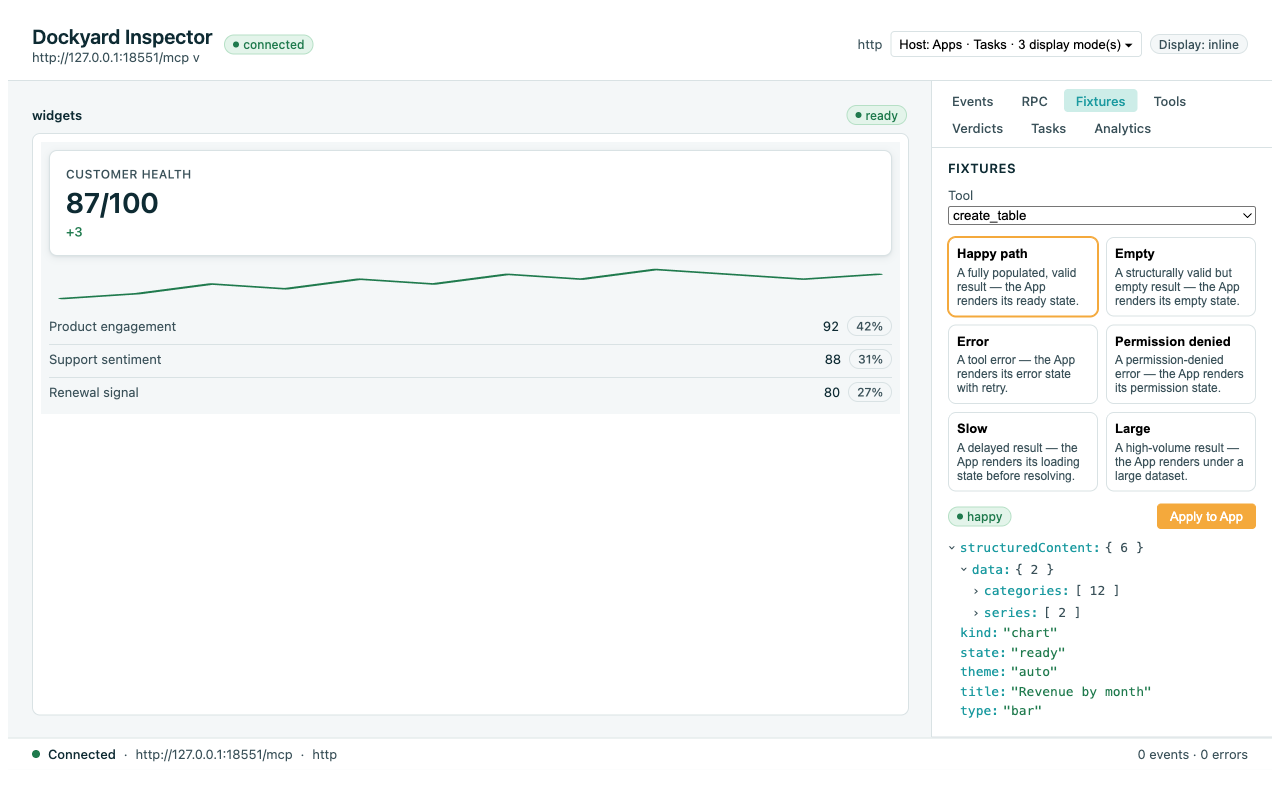
The inspector renders the App in a sandboxed iframe. The Fixtures switcher cycles through the six per-tool fixtures so you can see each UI state without writing a real call:
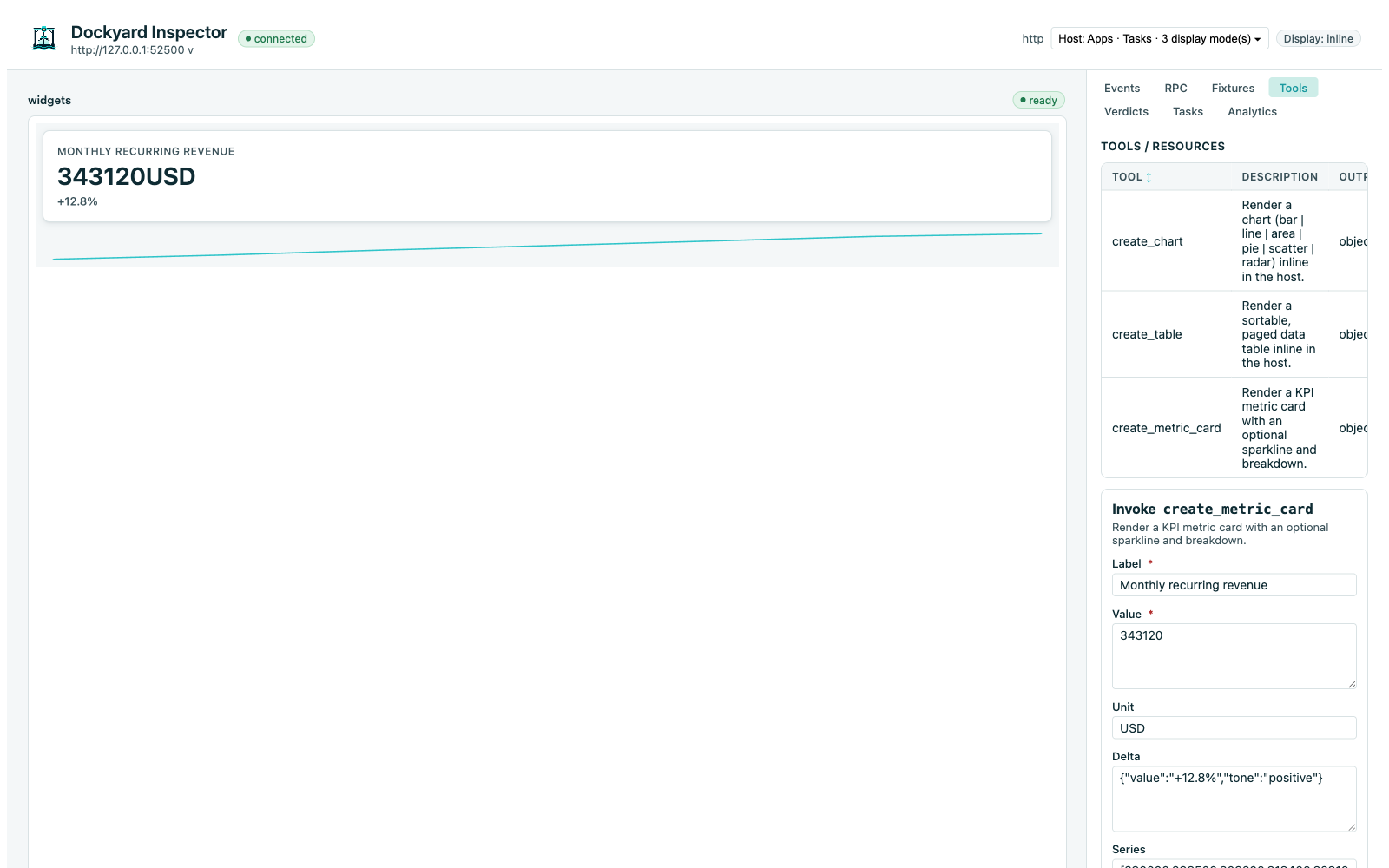
Fire a tool from the Tools tab and watch the App receive the structured result through the bridge:
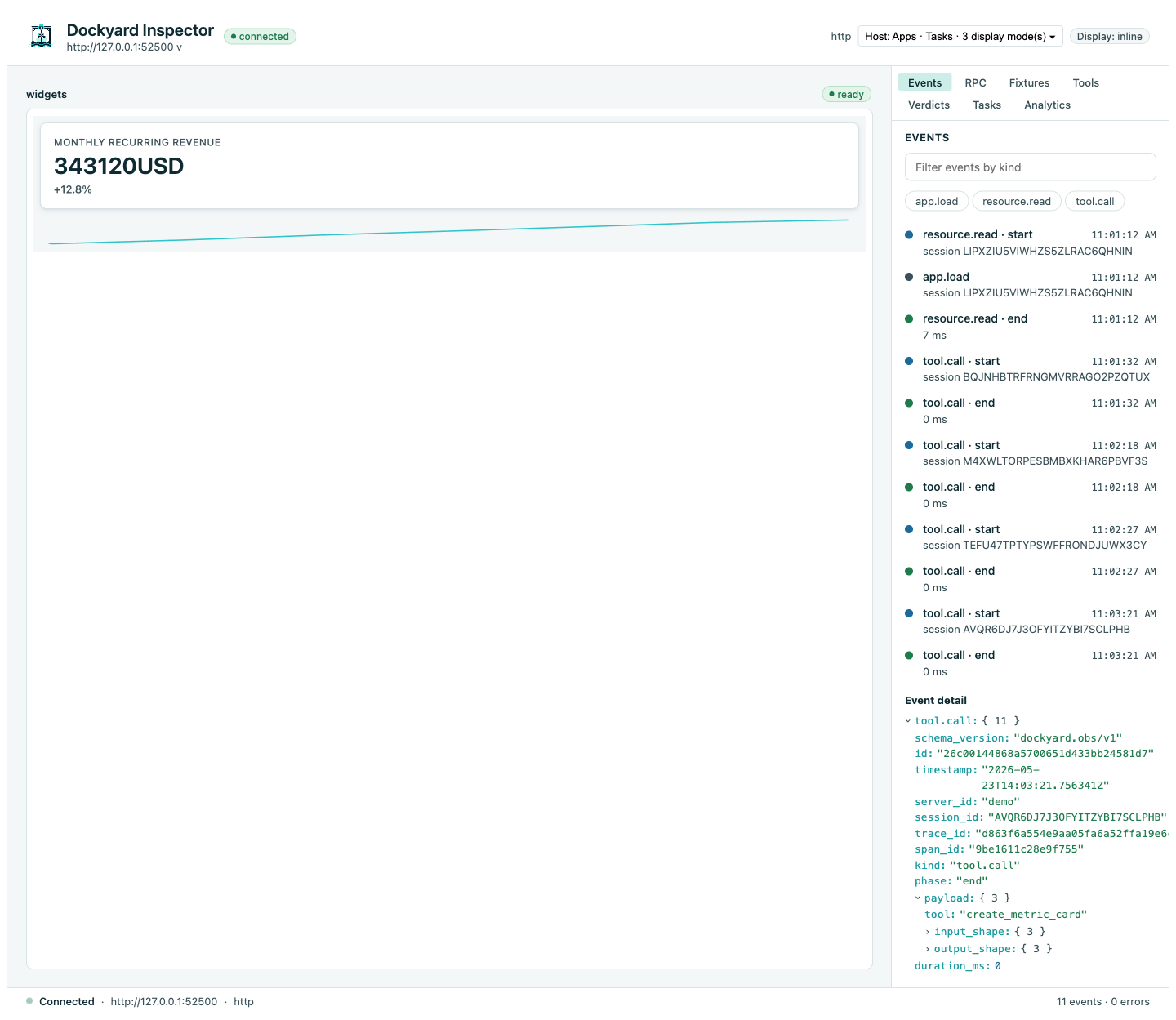
The Events tab shows the live Logbook stream — every tool call lands as a tool.completed event:
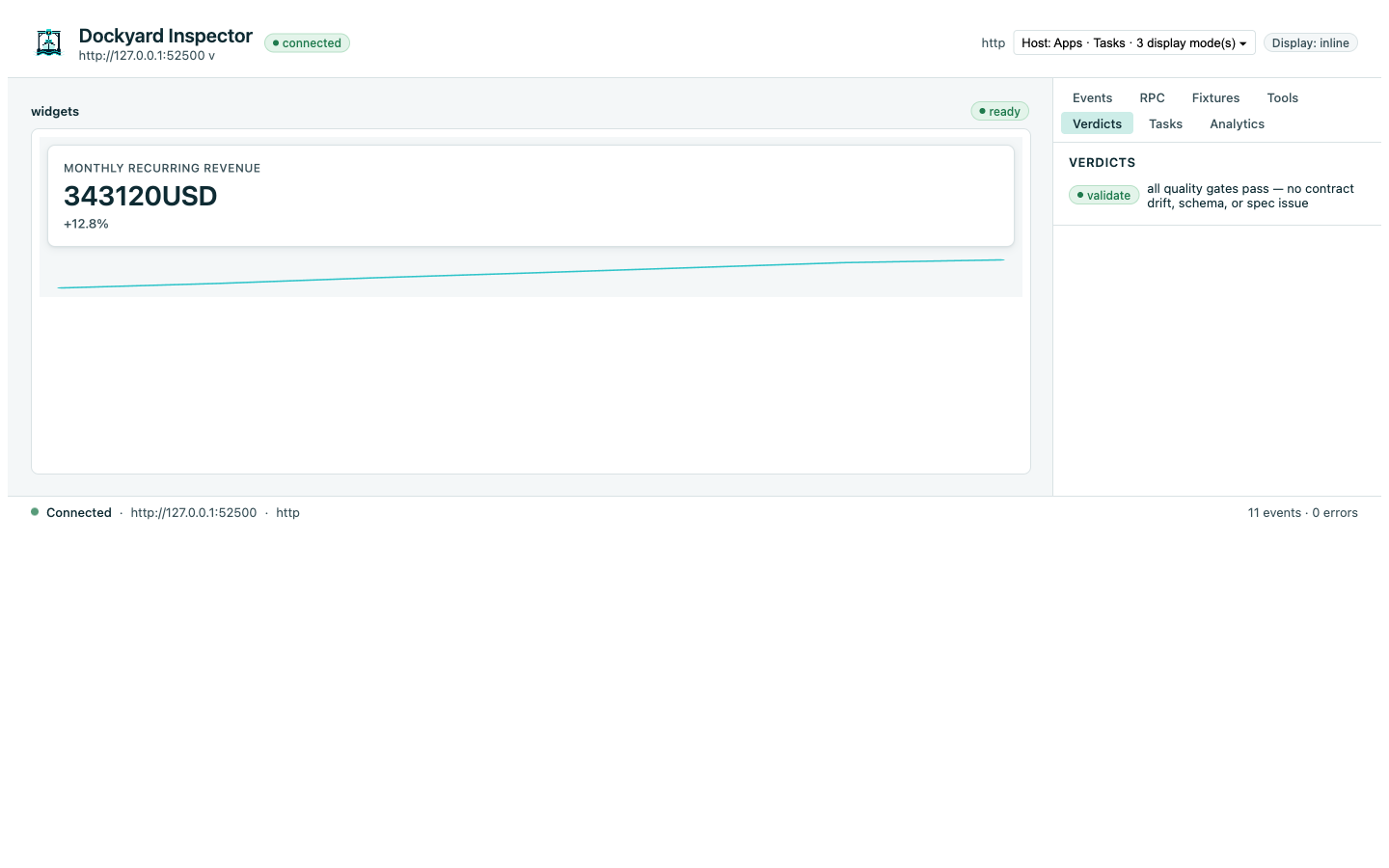
The Verdicts tab re-runs dockyard validate — green when the project is clean:
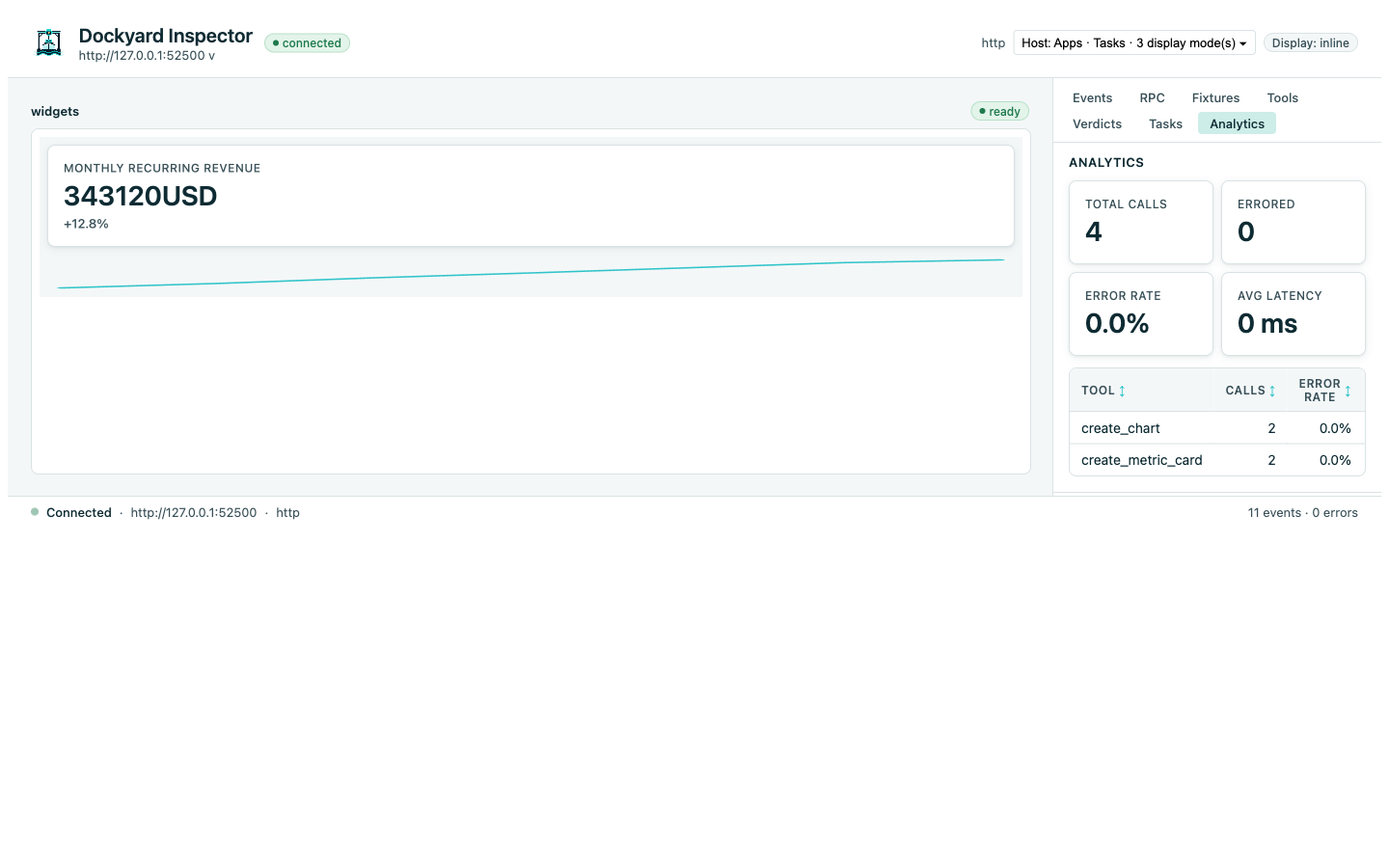
The Analytics tab plots per-tool latency derived from Logbook:
How the App dispatches
web/src/App.svelte listens for the tool result and picks a renderer by Kind. Sketch:
<script lang="ts">
  import { createBridge } from 'dockyard-bridge';
  import { PageState, type PageStateValue } from 'dockyard-ui';
  import Chart from './widgets/Chart.svelte';
  import Table from './widgets/Table.svelte';
  import MetricCardWidget from './widgets/MetricCardWidget.svelte';

  type Payload =
    | ({ kind: 'chart' } & ChartProps)
    | ({ kind: 'table' } & TableProps)
    | ({ kind: 'metric_card' } & MetricProps);

  let pageState = $state<PageStateValue>('loading');
  let payload = $state<Payload | null>(null);

  // createBridge() returns the bridge; subscriptions are live immediately.
  // `displayModes` is advertised to the host as appCapabilities.availableDisplayModes
  // (keep it in sync with `display_modes` in dockyard.app.yaml).
  const bridge = createBridge({ displayModes: ['inline'] });

  // The callback receives a CallToolResult — the widget payload is on
  // `structuredContent` (typed by the generated contract).
  bridge.onToolResult<Payload>((r) => {
    payload = r.structuredContent ?? null;
    pageState = payload ? 'ready' : 'error';
  });

  // Host theme variables arrive here (and via the reactive `bridge.hostContext`
  // stores); apply them to your root element.
  bridge.onHostContextChanged((p) => {
    if (p.styles?.variables) applyHostVariables(p.styles.variables);
  });

  // Kick the ui/initialize handshake. Route a rejection to your error state.
  bridge.connect().catch(() => (pageState = 'error'));
</script>

<!-- PageState (from dockyard-ui) routes every async state — the four-state rule. -->
<PageState state={pageState}>
  {#if payload?.kind === 'chart'}
    <Chart {...payload} />
  {:else if payload?.kind === 'table'}
    <Table {...payload} />
  {:else if payload?.kind === 'metric_card'}
    <MetricCardWidget {...payload} />
  {/if}
</PageState>
Each contract also carries an explicit theme field so a tool call can override the host default; the App resolves it against the host's styles.variables.
Adapt it
- Add a fourth widget — define the contracts in
internal/contracts/contracts.go, write the handler ininternal/handlers/, register it inmain.go, add an entry todockyard.app.yaml. Rundockyard generatethendockyard validate(see the Contracts guide and theadd-a-toolskill). - Plug a real data source — replace the synthetic body of each handler with a call to your service or database. The typed contract is the integration surface; the rest of the App is unchanged.
- Tune the theme —
web/src/theme.tsoverrides the design tokens; the bridge merges the host theme over your overrides.
What next
- The other template — approval-flows walkthrough — the write-side example.
- UI resources guide — the App pattern in detail.
- Inspector guide — every rail tab + flag.